
Want to stream your favorite content through IPTV Smarters on your Samsung TV? You’re in the right place. Getting Smarters Player Lite running on your Samsung smart TV isn’t as complicated as you might think, but there are a few quirks you’ll need to work around. Let me walk you through the entire process, step by step.
Here’s the thing: Samsung smart TVs use their own Tizen operating system, which means you can’t just head to a Google Play Store and hit download. But don’t worry—there are several reliable methods to get IPTV Smarters up and running on your screen, and I’ll cover each one so you can pick what works best for your setup.
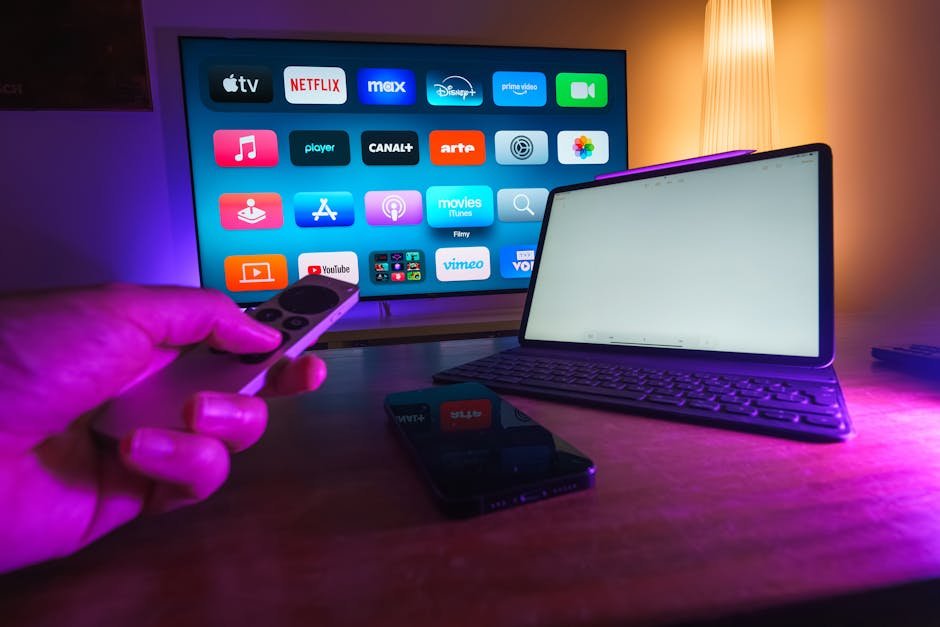
Understanding IPTV Smarters and Samsung TV Compatibility
IPTV Smarters is one of the most popular IPTV players available in 2026, and for good reason. It’s user-friendly, packed with features, and supports pretty much every IPTV service you can think of. However, Samsung’s Tizen OS doesn’t natively support IPTV Smarters apps in its app store.
What surprises most people is that you don’t actually need a native app to enjoy IPTV Smarters on your Samsung TV. There are three main approaches you can take, and each has its own advantages depending on your technical comfort level and the equipment you already own.
Why Samsung TVs Don’t Have Direct IPTV Smarters Support
Samsung built Tizen OS to create a controlled ecosystem, similar to what Apple does with iOS. While this gives them more control over performance and security, it limits the apps available to users. Most IPTV Smarters applications are designed for Android-based systems, which is why you won’t find them in Samsung’s official app store.
Method 1: Using an External Android Device (Recommended)
The easiest and most reliable way to use IPTV Smarters on your Samsung TV is through an external Android device. This could be an Amazon Fire Stick, Android TV box, or even a Chromecast with Google TV.
Step-by-Step Installation Process
- Purchase an Android streaming device (Fire Stick 4K or Android TV box work great)
- Connect the device to your Samsung TV’s HDMI port
- Power on the device and complete the initial setup
- Navigate to your device’s app store
- Download Smarters Player Lite from the official source
- Install the app and launch it
- Enter your IPTV service credentials
- Start streaming your content
This method gives you the full IPTV Smarters experience with all features intact. You’re essentially using your Samsung TV as a display while the Android device handles all the processing. It’s what I recommend to most people because it just works, every single time.
Method 2: Screen Mirroring from Your Smartphone
If you don’t want to invest in additional hardware, screen mirroring is your next best option. Both Android and iOS devices can mirror their screens to Samsung smart TVs, and it’s surprisingly straightforward.
For Android Users
Most Samsung TVs support Smart View, which makes mirroring from Android phones incredibly easy:
- Download IPTV Smarters on your Android phone
- Ensure your phone and Samsung TV are on the same Wi-Fi network
- Swipe down to access Quick Settings on your phone
- Tap on Smart View or Screen Mirroring
- Select your Samsung TV from the list
- Open IPTV Smarters and start streaming
For iPhone Users
iPhone users can use AirPlay 2, which most Samsung TVs from 2018 onwards support. The process is similar: connect to the same network, enable AirPlay on your TV, and mirror your screen. You’ll need IPTV Smarters installed on your iPhone first.
The downside? Screen mirroring drains your phone’s battery pretty quickly, and you can’t use your phone for other tasks while streaming. But in a pinch, it absolutely gets the job done.
Method 3: Using Samsung’s Built-in Browser
Some IPTV services offer web-based players that work through Samsung’s native browser. This isn’t available for all services, but if your provider supports it, it’s the cleanest solution since you don’t need any additional hardware.
Simply open the Samsung Internet browser on your TV, navigate to your IPTV provider’s web player, log in, and stream. The interface won’t be as polished as a dedicated app, but it’s functional. Check with providers like Abonnement IPTV Services or Abonnement IPTV Smarters Pro to see if they offer web-based access.
Comparing Your Options: Which Method Should You Choose?
| Method | Cost | Ease of Setup | Performance | Best For |
|---|---|---|---|---|
| Android Device | $30-100 | Easy | Excellent | Regular users who want the best experience |
| Screen Mirroring | Free | Very Easy | Good | Occasional viewers or testing IPTV Smarters |
| Web Browser | Free | Easy | Fair | Those with compatible IPTV services |
Setting Up Your IPTV Service Credentials
Once you’ve got IPTV Smarters running on your Samsung TV (through whichever method you chose), you’ll need to configure it with your IPTV service details. Here’s what you’ll typically need:
- Your IPTV provider’s URL or M3U playlist link
- Username and password (if required)
- Server details or DNS information
Most legitimate IPTV providers will send you these details when you sign up. If you’re shopping around for services, check out options at 4K Player IPTV or SmartX2 TV. Make sure you choose a provider that’s reliable in 2026, as the IPTV landscape continues to evolve.
Optimizing Your IPTV Smarters Experience on Samsung TV
Getting IPTV Smarters installed is just the first step. Here’s how to make sure you’re getting the best possible streaming experience:
Network Requirements
Your internet connection makes or breaks your IPTV experience. For smooth streaming in 2026, you’ll want at least 25 Mbps for HD content and 50 Mbps or higher for 4K streams. Use a wired Ethernet connection whenever possible—it’s way more stable than Wi-Fi, especially during peak hours.
Adjusting Video Settings
Within IPTV Smarters, you can tweak video quality settings to match your connection speed. If you’re experiencing buffering, try dropping from 4K to 1080p. It’s better to have smooth 1080p than stuttering 4K content.
Troubleshooting Common Issues
Running into problems? Here are the most common issues and their fixes:
App Won’t Load: Make sure your internet connection is active and stable. Restart your streaming device and try again. If you’re using screen mirroring, ensure both devices are on the same network.
Buffering or Stuttering: This usually comes down to internet speed. Close other apps using bandwidth, move closer to your router, or switch to a wired connection. You can also explore different Smarters Player Lite Pricing Plans that might offer better server performance.
Channels Not Loading: Your IPTV provider might be experiencing issues, or your credentials could be incorrect. Double-check your login information and contact your provider if problems persist.
Is IPTV Smarters Legal on Samsung TV?
Let me be clear: IPTV Smarters itself is completely legal. It’s just a media player, like VLC or any other streaming app. What matters is where your content comes from. If you’re using IPTV Smarters with a legitimate IPTV service that has proper licensing for its content, you’re absolutely fine.
The gray area comes with unlicensed IPTV services. In 2026, authorities worldwide have gotten much better at cracking down on illegal streaming operations. Stick with reputable providers and you won’t have any issues.
Alternative Apps Worth Considering
While IPTV Smarters is fantastic, it’s not your only option. Depending on your needs, you might also want to check out apps like Hot Player TV or explore the full range of channels available through Smarters Player Lite. Many users run multiple apps to see which interface they prefer.
Final Thoughts on Getting IPTV Smarters Running
Setting up IPTV Smarters on your Samsung TV doesn’t have to be complicated. Whether you go with an Android device, use screen mirroring, or access a web player, you’ve got options that work. The Android device route gives you the smoothest experience, but screen mirroring works perfectly fine if you’re just testing things out or watching occasionally.
The most important thing is choosing a reliable IPTV provider and making sure your internet connection can handle streaming. Get those two things right, and you’ll be enjoying your favorite content on the big screen in no time. Give it a shot—you might be surprised how straightforward the whole process actually is once you dive in.